Here's a brief follow-up to my recent blog on Adept-Manager Recovery.
If you still have an issue with Adept having failed to update or complete a package install, it is likely that one of the post install scripts is hung up on something.
Here is something additional to try:
sudo apt-get update && sudo apt-get upgrade && sudo apt-get autoremove
Basically, make sure you are up to date (a new package can sometimes fix the dep problem). Then try and perform any updates via upgrade. Finally, I have found that running the autoremove command actually triggers the postinstall scripts to execute after they have hung up on a failed package.
Now, you should be back to a stable system, try running your update/upgrade again and you should show no packages left in a bad state and not partially installed. If you still do, there may be another issue.
Feel free to comment, or ask for suggestions if you are stuck with and Adept or apt problem.
Showing posts with label apt. Show all posts
Showing posts with label apt. Show all posts
Tuesday, February 19, 2008
Friday, February 8, 2008
Recover from Adept-Manager Failures
Periodically, Adept-Manager will fail during an update. Though this should not occur, it will mean that you may have to resort to the command line to fix.
To open a terminal, hit the following key sequence:
ALT+F2
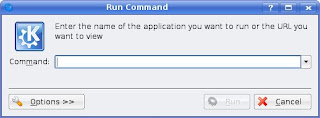
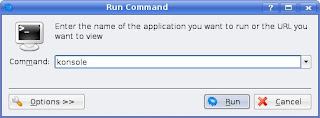
This will bring up the run command dialog. Type 'konsole' without the quotes and then hit the Run button.
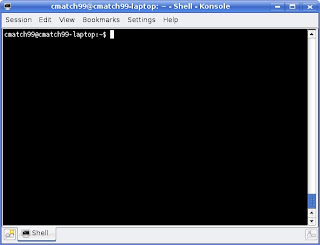
This will launch konsole, the KDE Terminal, and a new bash shell (the Bourne again shell, similar to MS-DOS, but more powerful).
In the konsole, you now need to type a few commands to ensure the integrity of the Adept package database.
Step 1:
Update the repository database by entering the following:
sudo apt-get update
This will update the db, so please make sure you are connected to the internet when you do this. You may get a message at the end indicating additional commands to run. If you do, please follow this and enter those commands. Remember to prefix them with 'sudo' as they will require Admin rights to work.
For example, you may get a prompt that there was an error, and to run 'dpkg --configure -a'. If you do, this is what you would enter:
sudo dpkg --configure -a
If you have to run the reconfigure command, it is likely due to a package wanting to overwrite a file. In most cases it should be safe to hit 'y' to take the maintainers version. This should resoilve the conflict. If not, proceed with additional commands below
Step2:
You may need to run a check on the database, to ensure no broken dependencies. Run the following.
sudo apt-get check
This should be enough to get you back up and running.
To open a terminal, hit the following key sequence:
ALT+F2

This will bring up the run command dialog. Type 'konsole' without the quotes and then hit the Run button.

This will launch konsole, the KDE Terminal, and a new bash shell (the Bourne again shell, similar to MS-DOS, but more powerful).

In the konsole, you now need to type a few commands to ensure the integrity of the Adept package database.
Step 1:
Update the repository database by entering the following:
sudo apt-get update
This will update the db, so please make sure you are connected to the internet when you do this. You may get a message at the end indicating additional commands to run. If you do, please follow this and enter those commands. Remember to prefix them with 'sudo' as they will require Admin rights to work.
For example, you may get a prompt that there was an error, and to run 'dpkg --configure -a'. If you do, this is what you would enter:
sudo dpkg --configure -a
If you have to run the reconfigure command, it is likely due to a package wanting to overwrite a file. In most cases it should be safe to hit 'y' to take the maintainers version. This should resoilve the conflict. If not, proceed with additional commands below
Step2:
You may need to run a check on the database, to ensure no broken dependencies. Run the following.
sudo apt-get check
This should be enough to get you back up and running.
Subscribe to:
Posts (Atom)