Most of you have come to realize that Linux is really stable, and rarely suffers from a complete system crash. However, on those rare occasions that it does, what should you do? What if you have a runaway process that is eating up all your CPU or memory, and the system had become non-responsive? Would you simply power-cycle or wave the three fingered salute?
Well, if you are not a total Linux geek, you probably will resort to using the CTRL+ALT+DEL method, and failing that a hard power off. In the Windows world, this was acceptable, as these really were the only options you had available. However, for Linux, this is not the case.
How many times under Windows did you have a crash and then had to hard reset, only to find your file system was corrupted and often unbootable? The same can happen under Linux (though generally less likely), if you simply power off.
So, you ask, what should I do? Well, since you asked, here are some steps you can try to safely and cleanly recover from a non-responsive system/desktop under Kubuntu (some of the suggestions may be specific to KDE/Kubuntu - ymmv).
1) CTRL+ALT+ESC - Kill Window
If your system is sluggish due to a hanging application, you can hit the CTRL+ALT+ESC key sequence and the next window you left-click will be killed. Be warned, you can click the background/desktop and kill it using this method as it is treated just like any other application/window.
2) CTRL+ESC - ksysguard
If you cannot kill the offending application using method 1) above (e.g. there is no GUI or killing the app you though was the problem did not resolve the issue), then you can bring up the process table (similar to windows task manager) and look for the application sucking up all the memory or CPU time. Select it from the list, and hit Kill to terminate it.
If you are familiar with the Linux command line, you can achieve the same via running Konsole and typing using the command 'ps -A' or 'top' to examine the same process list. To kill the offending application, you need to issue the 'kill' command followed by the process ID (or PID) (e.g. kill 9999).
Instead of using kill, you may need to use the killall command, which can be passed an application name, like 'killall konqueror', which will kill all instances of konqueror (this is not the same as killing one instance of konqueror via a single PID).
3) CTRL+ALT+F1 - Switch to first text console
Your system has six virtual terminals predefined, and can be accessed via CTRL+ALT+F1 through CTRL+ALT+F6 consecutively. If the desktop is frozen/hung, and the first two options cannot be performed, then you can use this method to bring up a text based console. Login with your usual name and password, and using step 2 above, you should be able to find the offending applicatiion (assuming there is one that stands out - i.e. has all your memory tied up or using 99% CPU).
4) CTRL+ALT+BACKSPACE - Restart X server (Desktop/GUI)
If that doesn’t work, you might want to restart your Desktop using the CTRL-ALT-Backspace combo. Beware, that this will kill all your Desktop apps currently running, and you may lose any changes to files not recently saved or auto-backed up. This should kick you back to the login manager. If it does not, then the X Server may have failed to re-initialize, try the next option.
5) CTRL+ALT+DEL - Reboot System
You can attempt to use CTRL+ALT+DEL from the Desktop/GUI or one of the Virtual terminals (CTRL+ALT+F1). If you do it via the Desktop, you may be given the Shutdown Dialog with options to Reboot or Shutdown or the system may just silently reboot. Sometimes this will not work, and you must invoke the CTRL+ALT+DEL via one of the Virtual terminals, which will perform a full reboot.
6) ALT+SysRq - Magic SysRq (System Request) Key
If none of the above work, you can try this last option before resorting to a hard power-cycle. This method has sometimes been called "Skinny Elephants", "Raise the Elephant" or "Raising Skinny Elephants". Not sure where the phrase originated, but here's what it refers to: "Raising Skinny Elephants Is Utterly Boring"
Taking the first letter from each word in the phrase, and you have the key sequence you need to hit to safely sync the disks, terminate running processes, unmount file systems and finally reboot.
r - put keyboard in raw mode
s - sync the disk
e - terminate all processes
i - kill all processes
u - remount all filesystems read only
b - reboot the system
Now you see why someone came up with the silly phrase you will now never forget (just like elephants never forget).
Here is the full key sequence (remember to use the left ALT key and the SysRq key is the PrtSc key if not labeled on your keyboard):
Alt+SysRq+r
Alt+SysRq+s
Alt+SysRq+e
Alt+SysRq+i
Alt+SysRq+u
Alt+SysRq+b
Please wait 2 or 3 seconds between hitting each key sequence to allow for each step to complete. Especially if you have a lot of running services/processes.
When your system boots, you may be prompted for a file system check. If you are, please ensure you let the system check and repair if necessary.
7) Power-cycle - Power off or Reset
You should never do this. The system will hate you for this and will eventually lead to some sort of file corruption of lost data. This is as an absolute last resort (i.e. keyboard is not responding to any key sequences above).
----
I hope this is useful to someone :)
Showing posts with label recover. Show all posts
Showing posts with label recover. Show all posts
Thursday, April 17, 2008
Tuesday, February 19, 2008
Recover from Adept-Manager Failures - Part II
Here's a brief follow-up to my recent blog on Adept-Manager Recovery.
If you still have an issue with Adept having failed to update or complete a package install, it is likely that one of the post install scripts is hung up on something.
Here is something additional to try:
sudo apt-get update && sudo apt-get upgrade && sudo apt-get autoremove
Basically, make sure you are up to date (a new package can sometimes fix the dep problem). Then try and perform any updates via upgrade. Finally, I have found that running the autoremove command actually triggers the postinstall scripts to execute after they have hung up on a failed package.
Now, you should be back to a stable system, try running your update/upgrade again and you should show no packages left in a bad state and not partially installed. If you still do, there may be another issue.
Feel free to comment, or ask for suggestions if you are stuck with and Adept or apt problem.
If you still have an issue with Adept having failed to update or complete a package install, it is likely that one of the post install scripts is hung up on something.
Here is something additional to try:
sudo apt-get update && sudo apt-get upgrade && sudo apt-get autoremove
Basically, make sure you are up to date (a new package can sometimes fix the dep problem). Then try and perform any updates via upgrade. Finally, I have found that running the autoremove command actually triggers the postinstall scripts to execute after they have hung up on a failed package.
Now, you should be back to a stable system, try running your update/upgrade again and you should show no packages left in a bad state and not partially installed. If you still do, there may be another issue.
Feel free to comment, or ask for suggestions if you are stuck with and Adept or apt problem.
Friday, February 8, 2008
Recover from Adept-Manager Failures
Periodically, Adept-Manager will fail during an update. Though this should not occur, it will mean that you may have to resort to the command line to fix.
To open a terminal, hit the following key sequence:
ALT+F2
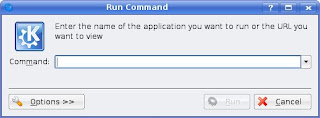
This will bring up the run command dialog. Type 'konsole' without the quotes and then hit the Run button.
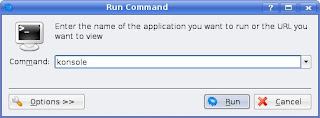
This will launch konsole, the KDE Terminal, and a new bash shell (the Bourne again shell, similar to MS-DOS, but more powerful).
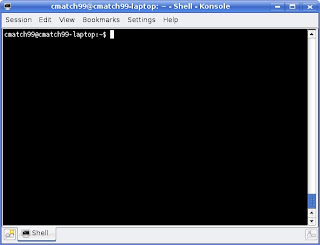
In the konsole, you now need to type a few commands to ensure the integrity of the Adept package database.
Step 1:
Update the repository database by entering the following:
sudo apt-get update
This will update the db, so please make sure you are connected to the internet when you do this. You may get a message at the end indicating additional commands to run. If you do, please follow this and enter those commands. Remember to prefix them with 'sudo' as they will require Admin rights to work.
For example, you may get a prompt that there was an error, and to run 'dpkg --configure -a'. If you do, this is what you would enter:
sudo dpkg --configure -a
If you have to run the reconfigure command, it is likely due to a package wanting to overwrite a file. In most cases it should be safe to hit 'y' to take the maintainers version. This should resoilve the conflict. If not, proceed with additional commands below
Step2:
You may need to run a check on the database, to ensure no broken dependencies. Run the following.
sudo apt-get check
This should be enough to get you back up and running.
To open a terminal, hit the following key sequence:
ALT+F2

This will bring up the run command dialog. Type 'konsole' without the quotes and then hit the Run button.

This will launch konsole, the KDE Terminal, and a new bash shell (the Bourne again shell, similar to MS-DOS, but more powerful).

In the konsole, you now need to type a few commands to ensure the integrity of the Adept package database.
Step 1:
Update the repository database by entering the following:
sudo apt-get update
This will update the db, so please make sure you are connected to the internet when you do this. You may get a message at the end indicating additional commands to run. If you do, please follow this and enter those commands. Remember to prefix them with 'sudo' as they will require Admin rights to work.
For example, you may get a prompt that there was an error, and to run 'dpkg --configure -a'. If you do, this is what you would enter:
sudo dpkg --configure -a
If you have to run the reconfigure command, it is likely due to a package wanting to overwrite a file. In most cases it should be safe to hit 'y' to take the maintainers version. This should resoilve the conflict. If not, proceed with additional commands below
Step2:
You may need to run a check on the database, to ensure no broken dependencies. Run the following.
sudo apt-get check
This should be enough to get you back up and running.
Subscribe to:
Posts (Atom)